Map & History
Watch the route fill in, and look back at every stop
Reading the map
The Map tab draws your travels as they happen. Each trip gets its own colour: a dashed route line runs from the trip's start flag, through every entry, to its end flag. Stops are round markers; fuel and service entries get their own icons; saved favourites show with a star.
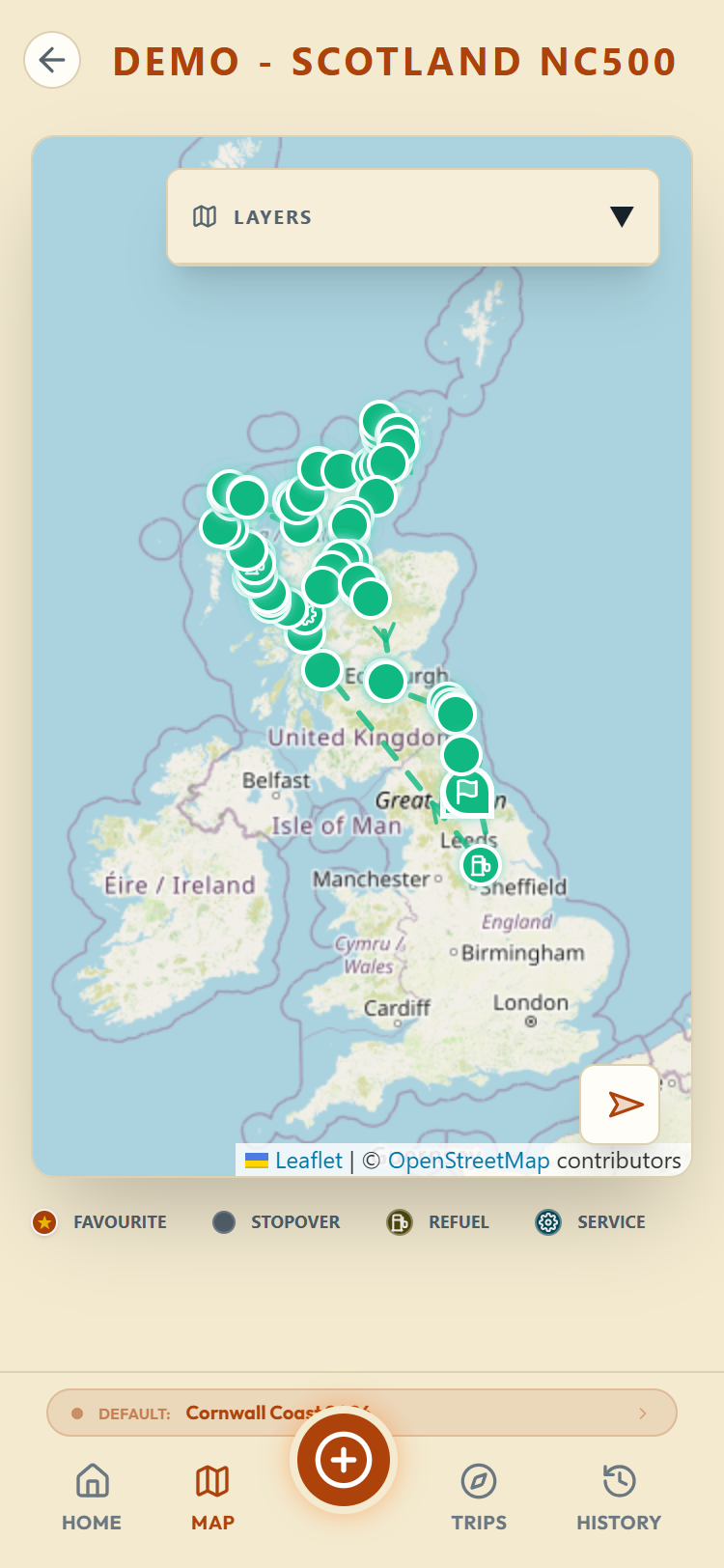
Tap any marker for the entry's name, date and facilities, with a link to open or edit it. The layers button lets you show or hide individual trips and your favourites; the locate button centres the map on you.
Markers for your own saved places also carry a Navigaterow: Apple, Google and Waze, which hand the coordinates to that app for directions. It is on stops, favourites and the start and end pins of a trip, so anywhere you have actually been is one tap from a route back.
Trip History
The History tab is the logbook. By default it shows your current trip; use the filter at the top to pick another trip, or Show All for everything. Sort newest or oldest first with the toggle. Open a card and come back and the list returns to it, so checking several entries in a row does not send you back to the top of the trip each time.
Filter to a trip that is not your current trip and a Previewing tripbanner appears at the top with a Make current button. You are only looking, not switching: your entries still go to your current trip until you press it.
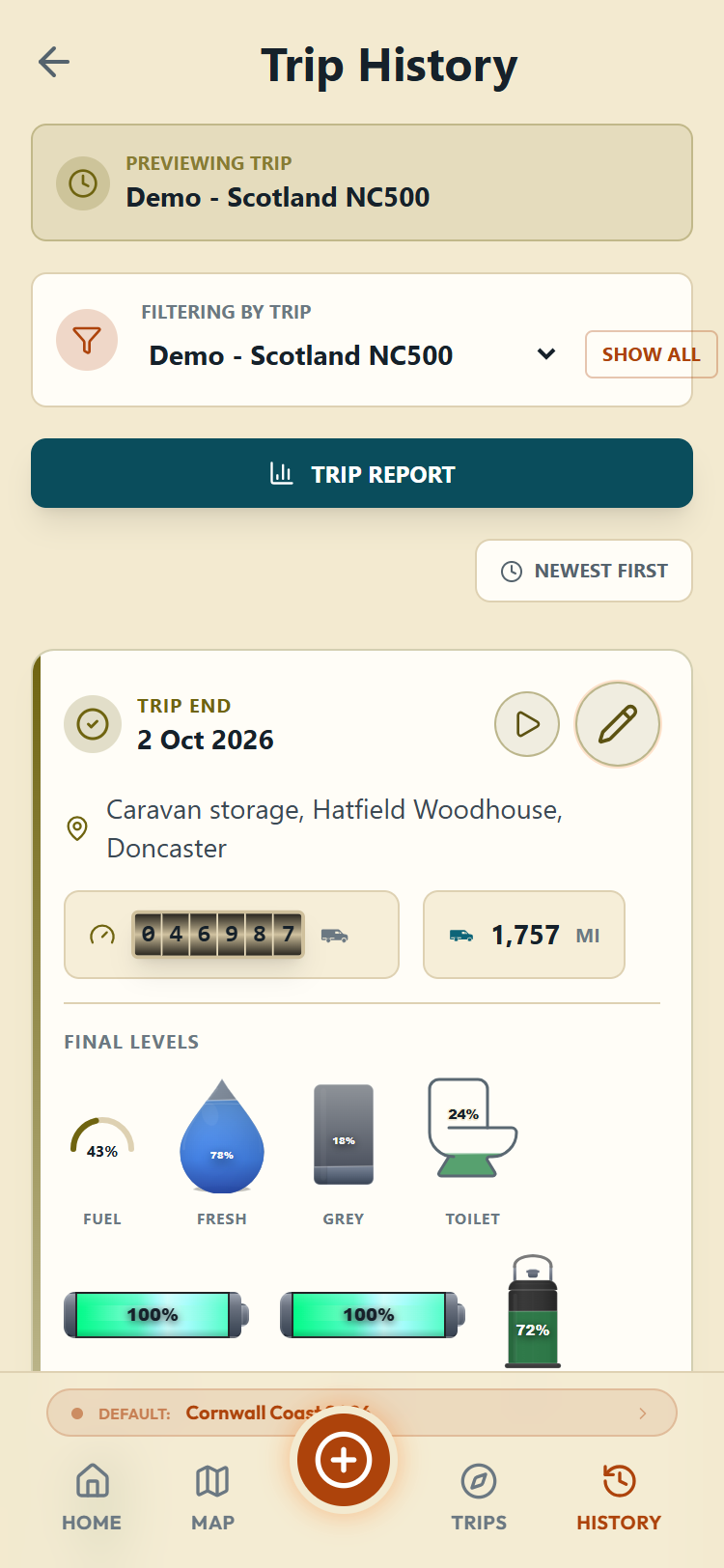
A trip's history is bookended by two special cards: Trip Start (with your starting odometer and initial levels) and, once ended, Trip End (final odometer, total distance, final levels).
What each entry card shows
Every entry card carries what you recorded: the scores (noise, views, signal), the weather, your arrival and departure levels (the overnight panel shows what a night used), any services and costs, and your notes. Fuel, toll and ferry entries show their own numbers instead: volumes, fees, crossings. A spending entry is simpler still, being one amount with the kind named beside it, and where you chose a kind (van parts or other costs) that shows too.
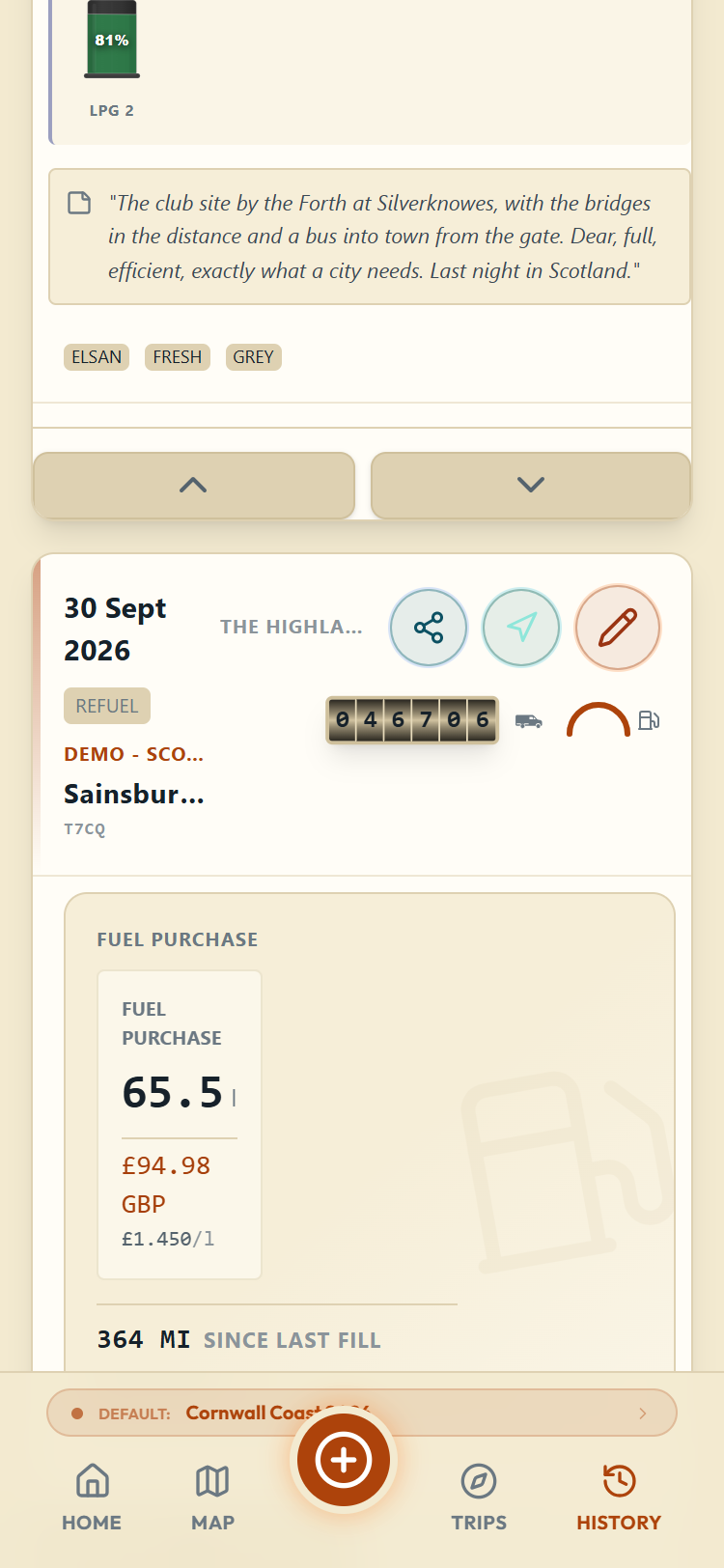
From a card you can share the stop, navigate to it or edit it, and there are up and down arrows for putting the day in order (see below). Every entry of a trip you have not ended also carries an End Trip button, which ends the trip using that stop's location, odometer and levels.
Navigate is the arrow beside Share, and it is the way back to somewhere you liked. Tap it and pick Google Maps, Apple Maps or Waze; the app hands over the coordinates and that app does the driving directions. The same button sits on the stop's own page. It only appears on entries that actually have a position saved, so an entry you typed without a location simply does not offer it.
Sharing is the quiet safety feature. The share button builds a short plain-text message with the place name, the date, your noise and view scores, the facilities, the first line of your notes and a map link straight to the coordinates, then hands it to your phone's usual share sheet so it can go by message, email or anything else. It is the easy way to tell someone where you are parked tonight, or to pass a good spot to a friend who is following behind you. It sends that one stop, as it was when you tapped the button; the app does not broadcast where you are or keep anyone updated as you move.
The Trip End card is editable like any other entry now.Its pencil opens the End Trip screen again, headed Edit Trip End and filled in with what you saved: the end date, the place, the odometer and the final levels. Change what was wrong and Save puts you back in History. It used to lead to Manage Trip, which is a different screen with a different bin, and that caught people out.
That screen has a bin of its own, and it deletes the ending rather than the trip. Confirm Delete Trip End? and the trip simply opens again, with every entry on it untouched. The ending itself goes to the Recycle Bin as Trip end with the trip's name, so restoring it puts the date, place, odometer and levels back and marks the trip completed again.
Ending a trip from a card
End Trip on a card asks first, and the question is worth reading. It tells you that the stop's location, odometer and levels become the trip's closing figures, that the stop itself is then removed from the history, and that the trip is marked completed.
You can pick an earlier entry than your most recent one, which is the point: people often realise a week later that the trip really finished at Tuesday's stop. If you do, the app counts the entries logged after it and says so. Those entries are kept, but they will sit after the trip's end date. It offers you your last entry instead if you would rather the trip ended where the logbook does.
What a tank of fuel bought you
A fuel card works out two things for you from what you already logged. The price per litre (or per gallon) appears whenever you recorded both a volume and a cost. The distance since your last fillappears once that vehicle has two fills with odometer readings, and it is measured between fills of the same vehicle, so a second van never borrows the first one's mileage.
Consumption, in mpg or L/100km (mi/kWh or kWh/100km for electric), is only offered when both ends of the stretch were full tanks. Between two part-fills the number would be meaningless, and a wrong mpg is worse than none, so the app shows nothing rather than guess. Tick Full Tank when you brim it and the figures look after themselves. Miles per gallon follows the fuel unit chosen in Settings: Gallons (US) gives US mpg, and Litres or Gallons (UK) give UK mpg. The label always says which, mpg (UK) or mpg (US).
Reference codes
Cards carry a short code in the corner, four characters like K7P2, and trips have one too. Two nights at the same place in the same week look identical on a list, so the code gives you something to say out loud and something to match against when you are deciding which entry to edit. Stops carry their own code, on the card and on the stop's page; trips carry theirs in My Trips and in the "which trip?" question.
A code belongs to the record for good. It is worked out from the record itself rather than counted, so it is the same on your phone and your tablet, it survives a restore, and deleting one entry never renumbers the others.
Putting a day's entries in the right order
Log a fuel stop, a ferry and a night stop on the same day and they may not line up the way the day actually went. The up and down arrows at the bottom of each card fix that: tap Move Up or Move Down and the entry swaps places with its neighbour. The new order is yours and it sticks.
This only works within a single day. The arrows move an entry among the other entries logged on the same calendar date, and nothing more. You cannot lift a stop from the 15th and drop it above one on the 14th. If an entry is on the wrong day, that is a date to correct, not an order to shuffle: open the entry, edit it, and change the date itself.
That is also why the arrows come and go. An entry that is the only one logged that day has nothing to swap with, so it shows no arrows at all. An entry at the top of its day keeps its down arrow but loses its up arrow, because the card above it belongs to a different day.
Reordering is about the list, and only the list. The charts on a trip summary are plotted against the clock, so moving a card up or down does not move its point on the line. The only place your order counts there is between two entries recorded at exactly the same time.