Logging
Stops, services, fuel, tolls, ferries and what you spent, in detail
The entry types
Everything you record is one of ten entry types, in two halves of five. Five are about the journey: a Stopover (the default, for anywhere you park or stay), a Service (a place you used facilities without staying), Fuel, a Toll and a Ferry. Five are about money you spent along the way: Groceries, Eating Out, Attractions, Van Parts and Other Costs. Start any of them from the quick actions on Home, or tap the plus button in the bottom bar, which asks What are you logging? and offers the same ten.
Moving around the form
A stopover has six sections: Vehicle, Location, Resources, Services, Weather and Notes. Slide the icons around the tyre to move between them, or tap the arrows in the corners. The other entry types are shorter and take you straight to what matters, like the pump numbers for fuel or the crossing details for a ferry.
The Vehicle, Location and Resources sections work as shown in the Quickstart guide: your trip, vehicle, date and time come pre-filled, GPS captures where you are, and you drag your tanks and batteries to match reality. A few things there are worth calling out.
A night stop opens on Location rather than Vehicle, because where you are is the thing you came to record and the vehicle details are already filled in. Fuel, ferry and toll entries still open on Vehicle, where their own numbers live.
Location asks what kind of place it is, with three choices: Wild, Aire and Campsite. There is also a Trip box, already set to your current trip, which is how you file an entry against a different trip without changing your current trip first. The arrow beside the location box grabs your current position; the map button opens a picker where you can drop a pin, and the picker shows the exact coordinates of the pin while you choose, with Cancel and Confirm at the top.
The picker also has a search box across the top, reading Search a place, or paste coordinates. Type a place name and it looks the place up and flies the map there. Paste a pair of coordinates and it goes straight to the spot without looking anything up, which is the quicker route when somebody has sent you a pin. It takes them the way they usually arrive: 54.1234, -2.5678 as copied from a map, or 54.1234N, 2.5678W if that is the form you have. Either way you still drop the pin and still press Confirm, so searching only ever moves the map.
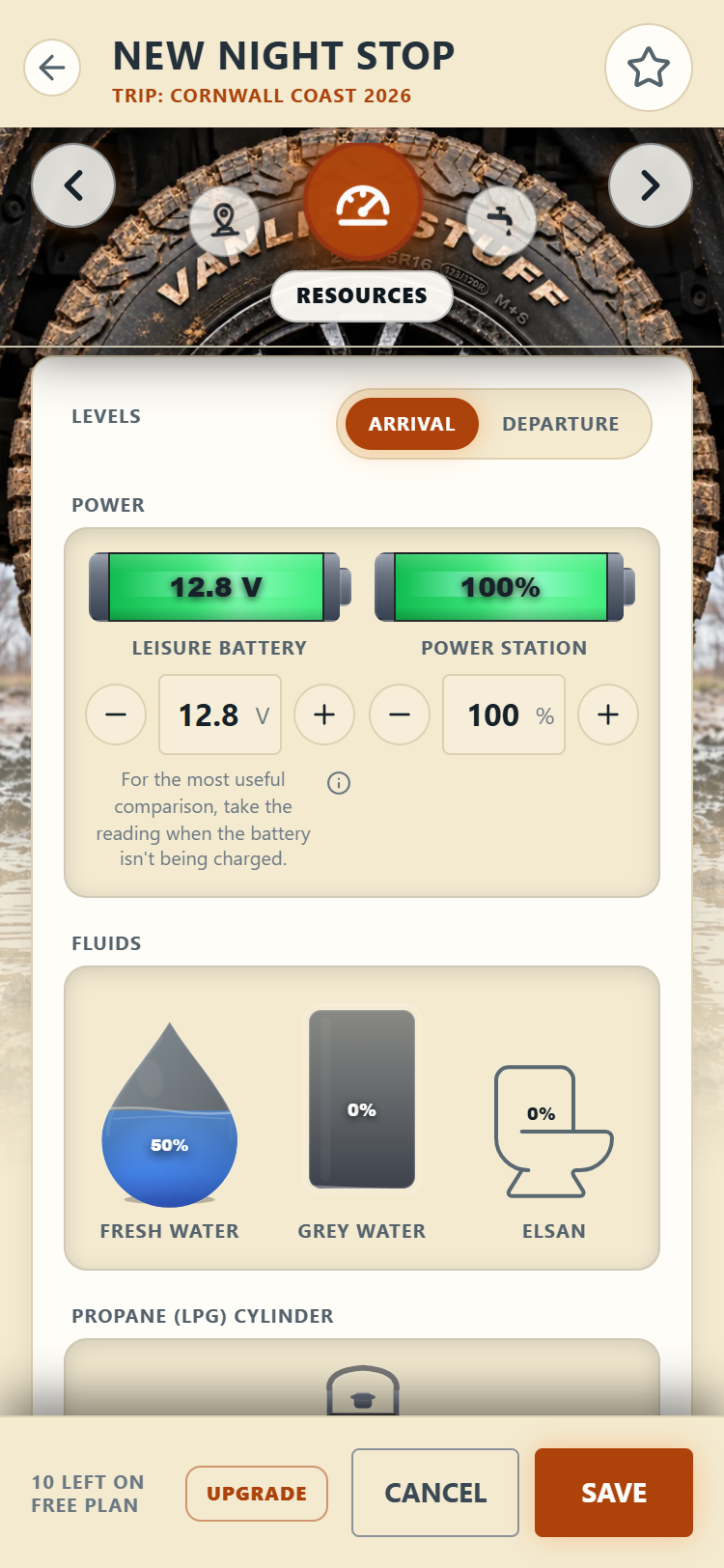
Resources shows only the systems your vehicle actually has. If yours carries gas bottles, a Propane (LPG) Cylinder gauge appears here, or two of them if your vehicle is set up for a double bottle. Drag each one to how full it is. The same applies to the toilet: drag it to how full the cassette is, and it colours up as it fills so a glance tells you whether tomorrow needs a service point.
Slope and tilt
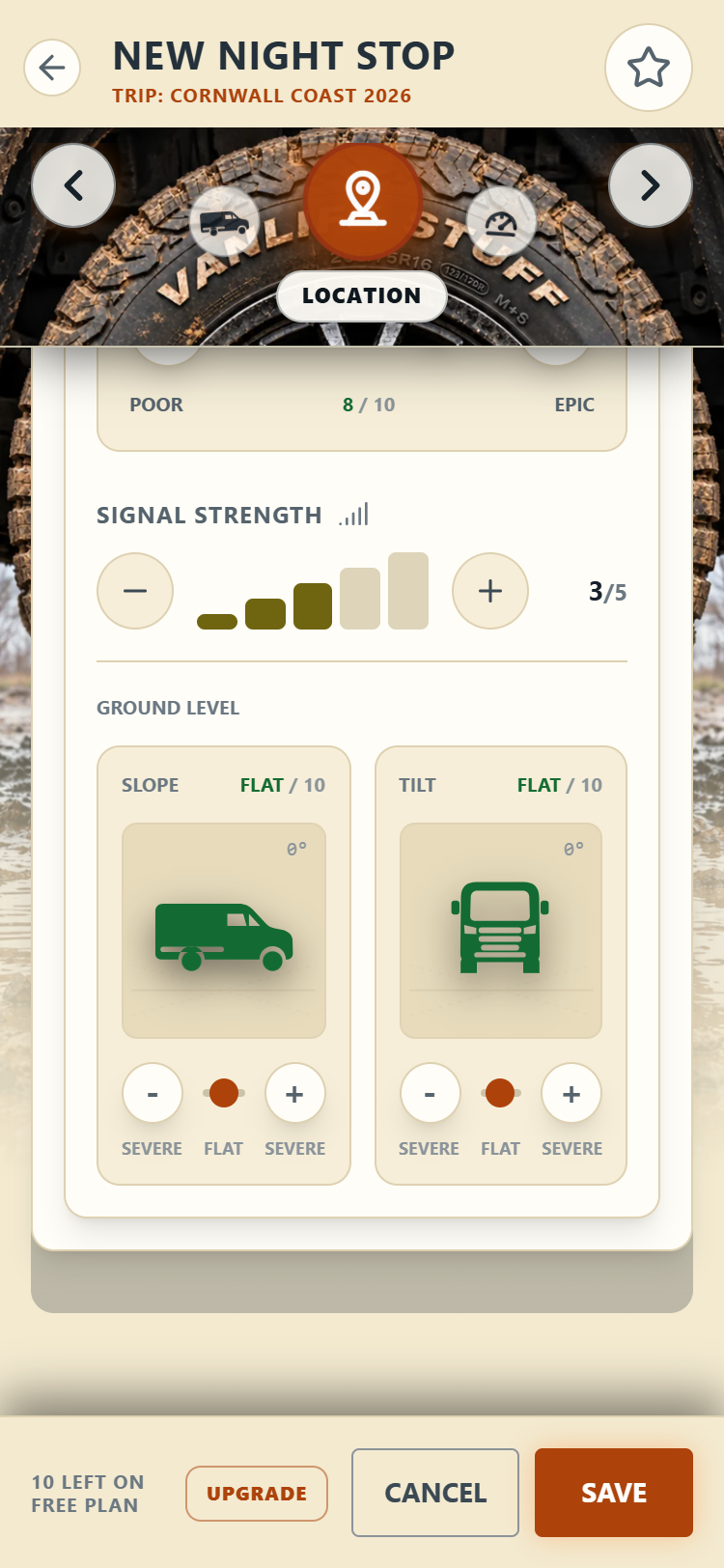
In the Location section you can record how level the pitch is, in two directions: slope (nose up or down) and tilt (leaning left or right). Each control runs both ways, severe through flat to severe, so you can lean the van the way you actually saw it. Drag the slider or use the minus and plus buttons; the van graphic leans as you go, there is a degree reading in the corner, and the colour runs green through amber to red as it gets more severe. Both the steepness and the direction are saved, so a nose-down pitch and a nose-up one stay told apart in your history.
When you have stopped there before
Pull into somewhere you have used before and the app may say You’ve stopped near here before, naming the place and how far off it is. It looks for a favourite or a past night stop within about fifty metres of where you are. A favourite wins if there is one, because you saved that on purpose. If you have stopped in the same spot several times, it offers your most recent visit, on the grounds that the latest look at a place is the truest one.
Reload details fills in what belongs to the place rather than to the night: views, noise, signal, slope and tilt, the facilities, and the kind of place it is. Dismiss makes it go away. Nothing is filled in until you tap, and everything it fills in can still be changed before you save.
Batteries: percent or volts
Each vehicle says how its battery levels are reported, and the leisure battery and the power station are set separately. You choose when you first set the vehicle up, and you can change it later under Settings > My Vehicles: the question reads How is the level shown?with Percentage (%) and Voltage (V).
Percentage is a state of charge, nought to a hundred. Voltage is what the meter on a 12V system actually tells you, which for a lot of vans is the only honest number available.
Either way you can drag the battery to match, and underneath it there is a minus and a plus around a box you can type into, which is how you actually hit a figure. Percentages move a point at a time, nought to a hundred. Volts move a tenth at a time, from 10.5 up to 15.5.
That ceiling is deliberately well above a resting battery, because a battery on charge genuinely reads that high and the box must not refuse a real number. It does mean the picture and the reading part company at the top: anything above 12.8 volts shows as a full battery, since a reading that high means either rested and full or currently charging. The figure you typed is what gets saved.
Changing the setting never rewrites what you have already logged. Every reading is saved with its own unit, so switching a vehicle from percent to volts changes what you are asked for next time and nothing else. Anything you logged before this arrived is a percentage and stays one. A trip that straddles the change will have both kinds in it, and that is correct rather than a fault.
The battery line on a trip chart copes with that: it is drawn on a single scale so it stays joined up across the change, and the tooltip shows you the reading as you entered it, with its unit.
Phone signal
Signal is recorded as bars, none up to five. Tap a bar to set it, or use the minus and plus buttons either side, which are easier with gloves on or one hand full. Tapping the bar you are already on drops it by one, so you can correct an overshoot without reaching for the minus. The reading beside it shows what is stored.
Services and costs
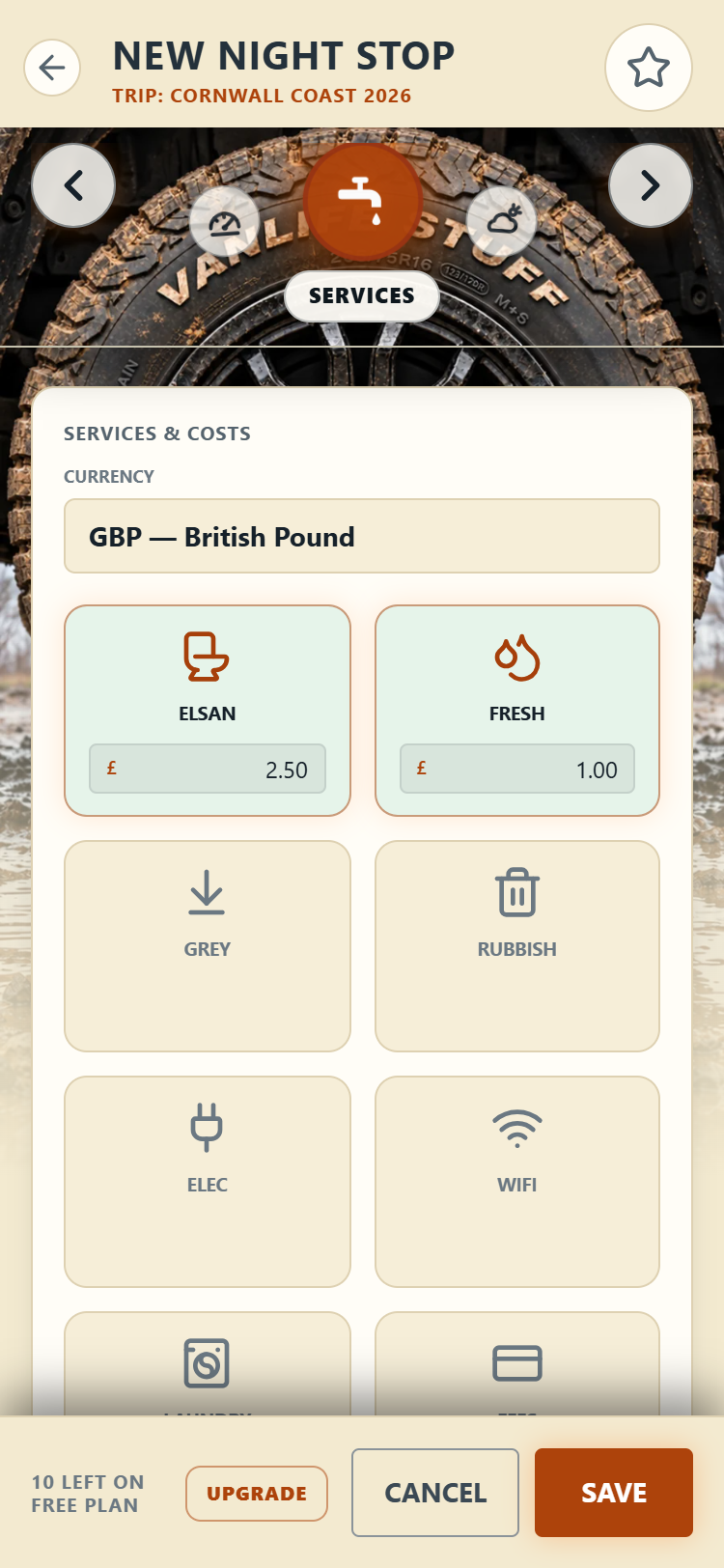
Tick what you used: elsan, fresh water, grey water, rubbish, electric, WiFi, laundry, fees, LPG exchange. Each one takes an optional cost, in the currency you pick at the top of the section. Costs feed the trip report's spend breakdown, so a few seconds here buys you real numbers later.
The Currency box at the top of Services & Costs sets the currency for that entry, and it starts from your default. Change it when you cross a border and the cost boxes follow: they take the right number of decimal places for the currency you picked, so a yen amount is a whole number and a Kuwaiti dinar takes three places. On a phone the keypad drops the decimal point where the currency has none.
Fuel entries
Tap Fuel on the Home screen
Record the fill
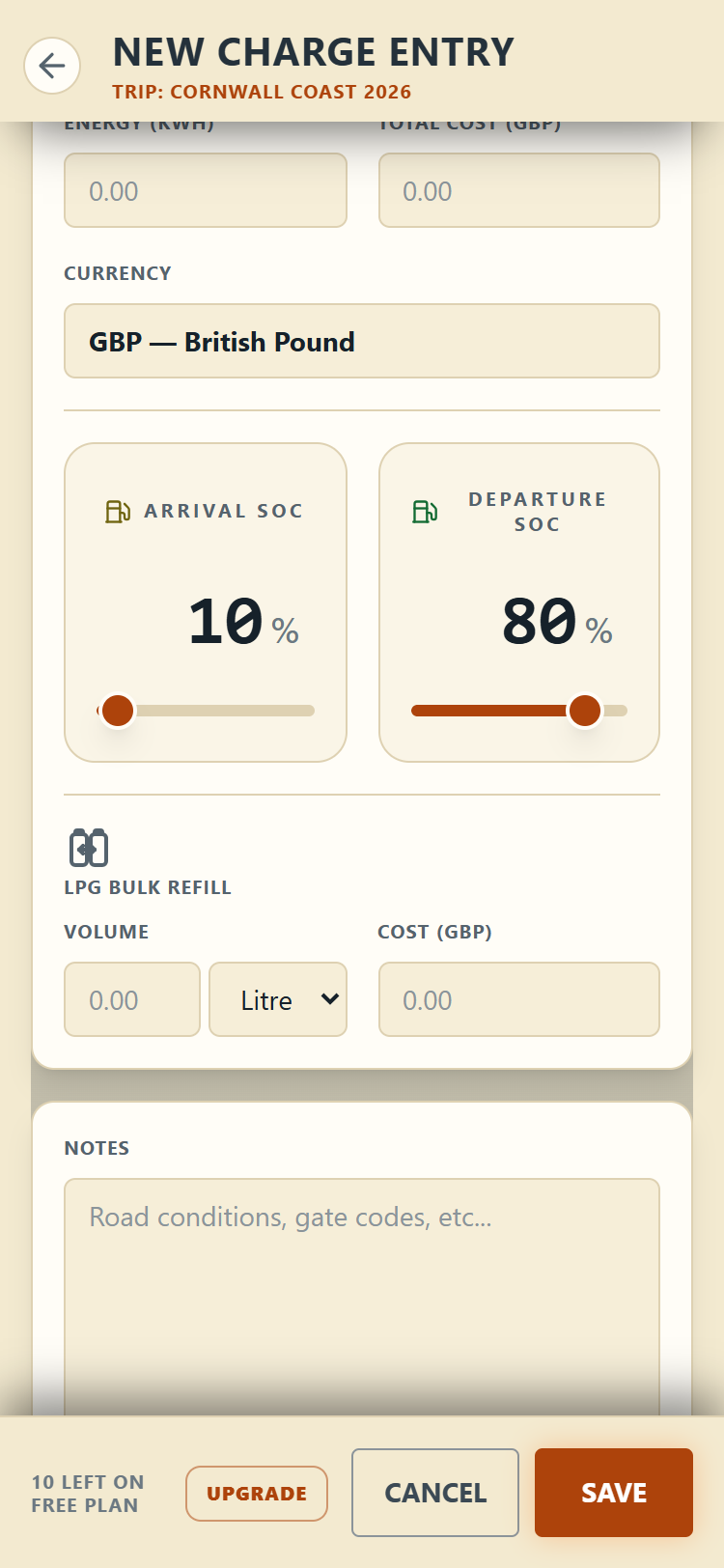
On an electric vehicle the same entry calls itself what it is: the screen reads New Charge Entry and the panel Charge Details. You record energy in kWh, and the charge level on arrival and departure. Those two are Arrival SOC and Departure SOC, and each is a card with the percentage large and editable: type the number your car actually showed, or step it, and there is still a slider underneath for a rough setting. A charger reading of 38 percent should go in as 38, not as near enough.
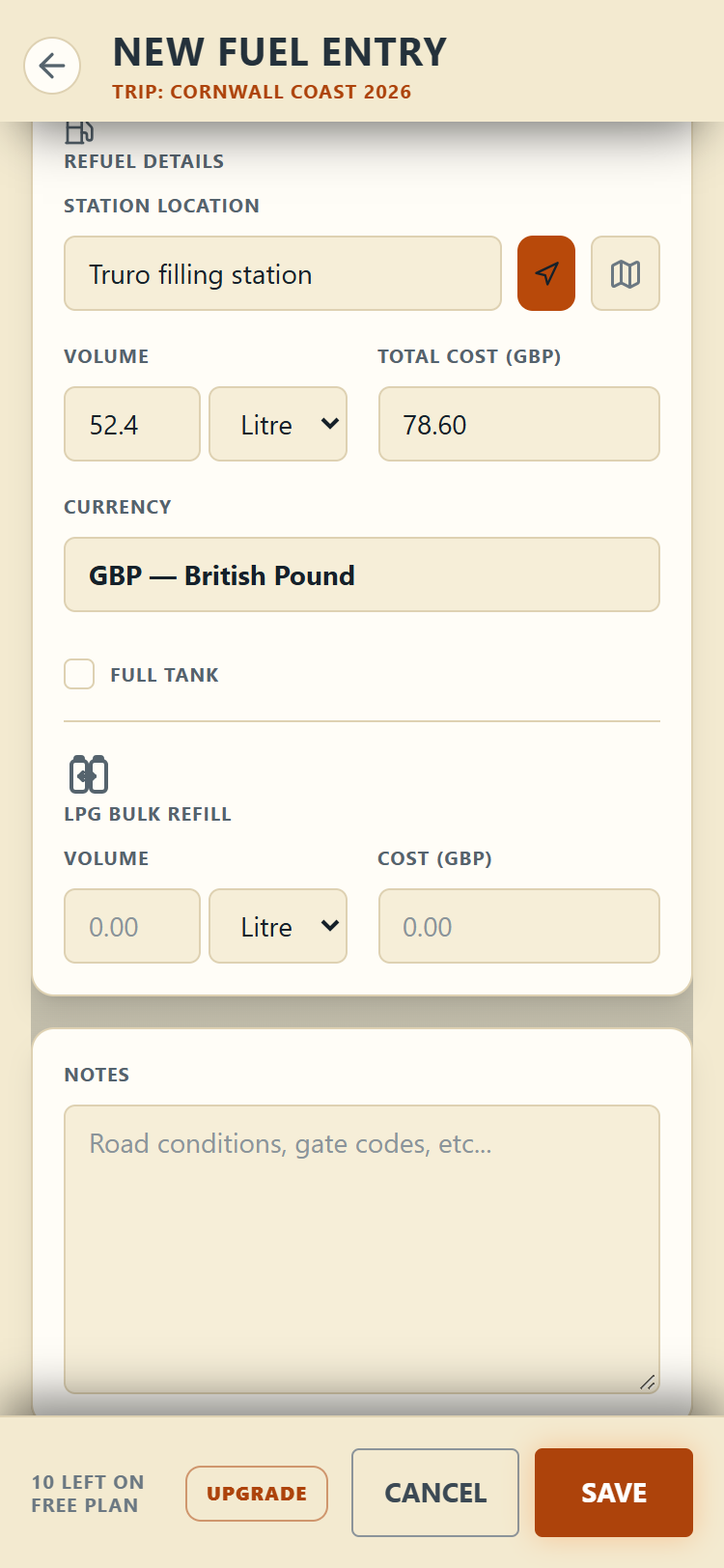
Check the currency before you drive off
The five spending entries
These five are for the money that goes nowhere near a pitch or a pump, and they are deliberately the shortest forms in the app: one screen, a date and time, where you were, the currency, one amount and a notes box. No levels, no services, no star for favourites, because none of that belongs to a shop receipt.
Each asks for its amount in its own words. Groceries wants a Shop Total and the Shop / Town. Eating Out wants the Bill Total and the Cafe / Restaurant. Attractions wants Tickets / Cost and the Attraction / Activity. Van Parts wants the Cost and the Garage / Shop, and it is the only one of the five that also takes your mileage, because what a repair cost is half the story and what the van had on it at the time is the other half.
Two of them ask a second question, as a grid of chips. Van Parts asks What was it for? and the answer is optional: Tyres, Oil & Fluids, Spares or Repair. Leave it alone and the entry is simply Van Parts.
Other Costs asks What kind of cost? and that one you have to answer: Phone & Data, Laundry, Parking, Transport, Souvenirs, Vet or Misc. Save will not let you past it. That is on purpose, because a pile of costs labelled only "other" tells you nothing in six months, and each kind reports under its own name later: Transport becomes Buses, Trains & Taxis, Souvenirs becomes Souvenirs & Gifts, Vet becomes Vet Bills and Misc becomes Miscellaneous. Laundry and Parking land in the same place as laundry and parking you logged at a night stop, so the total is the total however you recorded it.
Tolls and ferries
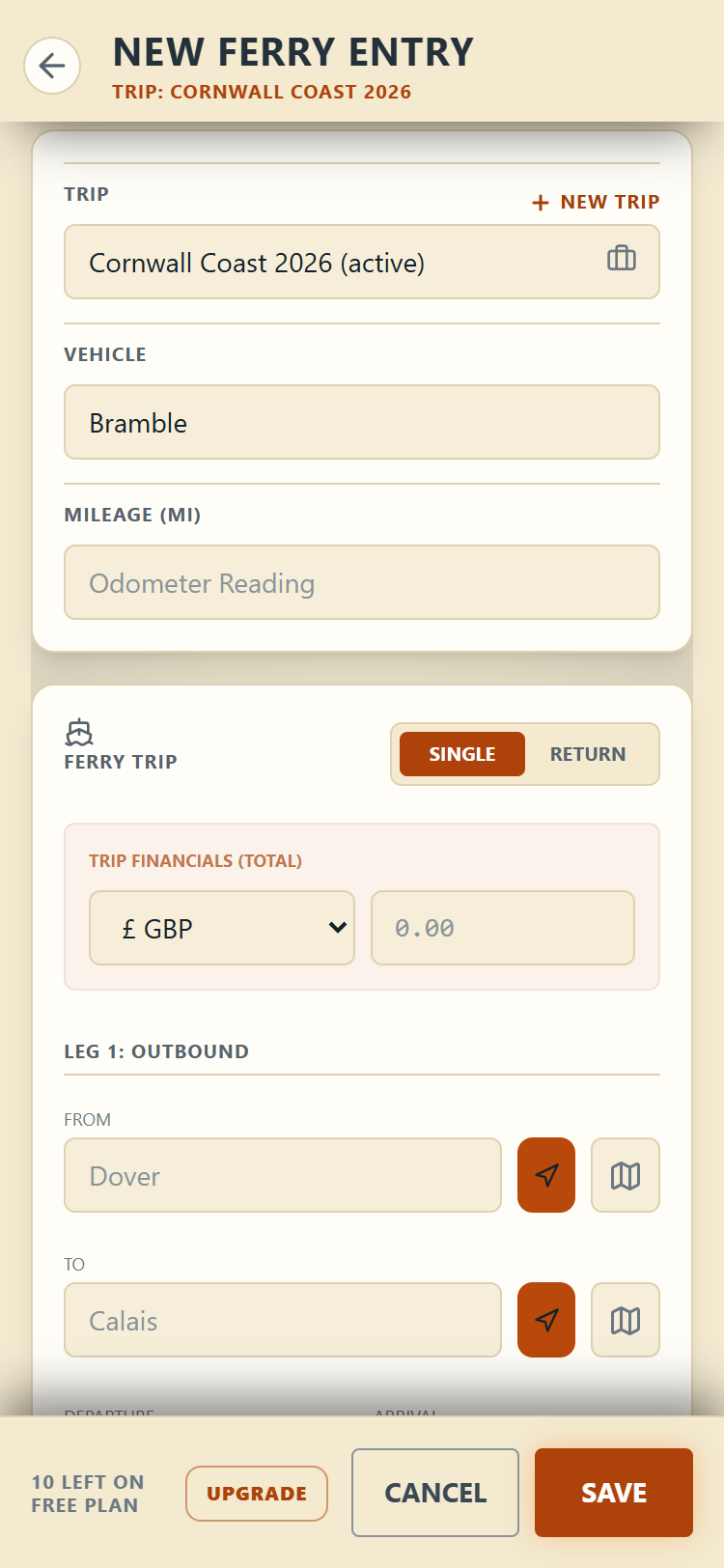
A toll records where you joined and left, the times, and the fee. A ferry records the crossing: single or return, each leg's ports and times, and the total cost. Book-keeping worth knowing: a return ferry with both legs still counts as one entry against a free plan's limit, not two.
Viewing, editing and sharing
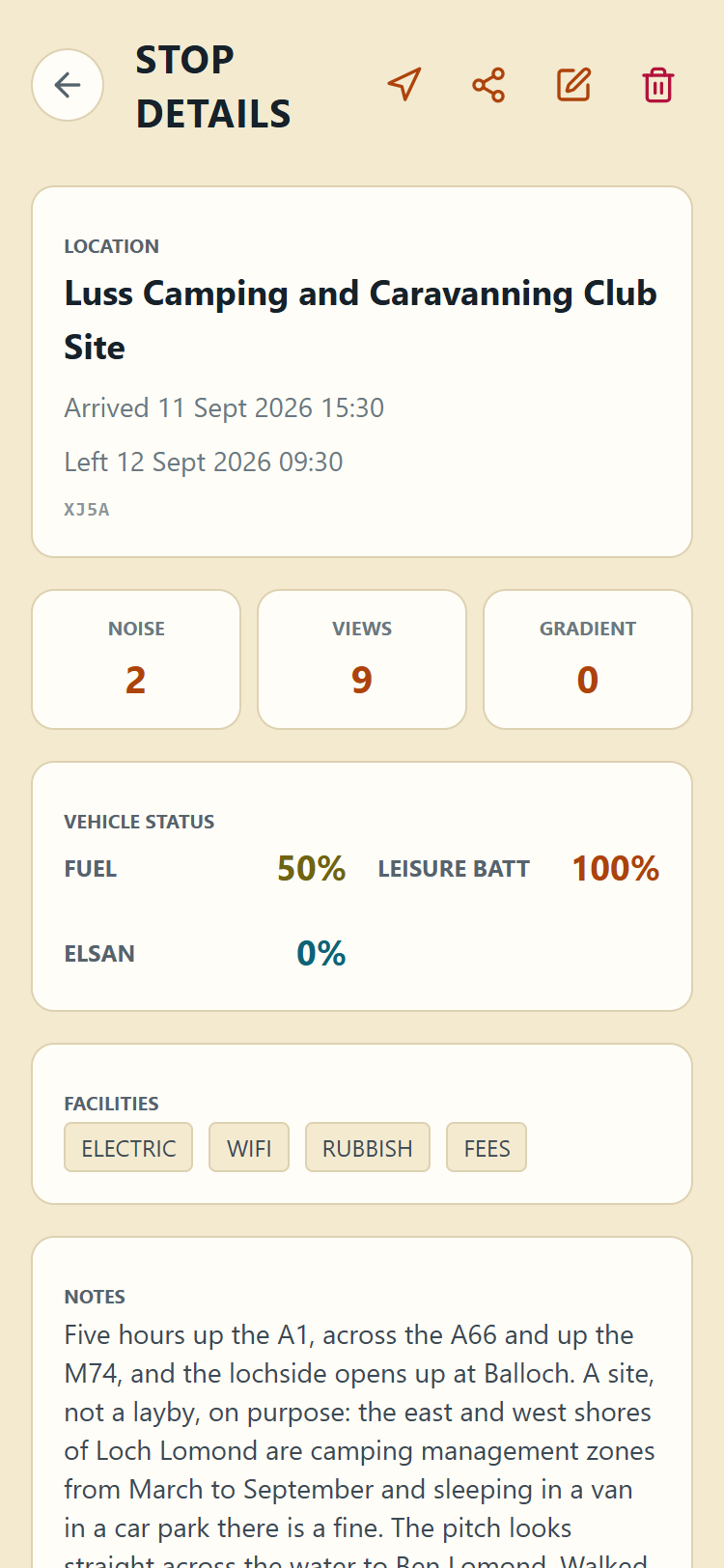
Tap any entry in History to see it laid out: location, scores, levels, facilities and notes. From there you can share it (a tidy text summary with a map link), edit it, or delete it. Deleting sends it to the Recycle Bin, where it waits thirty days in case you want it back. Saved entries are locked against accidental edits; the padlock in the edit screen unlocks them first.